Open Nimo
New here? Just text Nimo — that’s the whole sign-up. Already texting? Tap “Log in to Nimo”.
 A little help, a text awayNIMO — YOUR EVERYDAY ASSISTANT
 Less app switching. More “Nimo, handle it.”
Your calendar, inbox & little things. One conversation.
— Not another to-do list.
a little more space
for living.
A little help, a text awaySee Nimo in action Your reminders, ideas, and everyday questions.
All in one familiar conversation.
— just text Nimo.
New here? Just text Nimo — that’s the whole sign-up. Already texting? Tap “Log in to Nimo”.
Nimo detects your country code automatically. Check it, then type the number you use for texts.
If Nimo has not seen that number yet, send a quick “hi” from Messages, then come back.
Use the texted code to log in. You’re in — start a conversation, set a reminder, or connect your apps.
nimo iMessageRemind me to move the laundry in 1 hour.
You got it. I’ll remind you in 1 hour.
Illustrative conversation nimo iMessageHow many calories in my lunch?
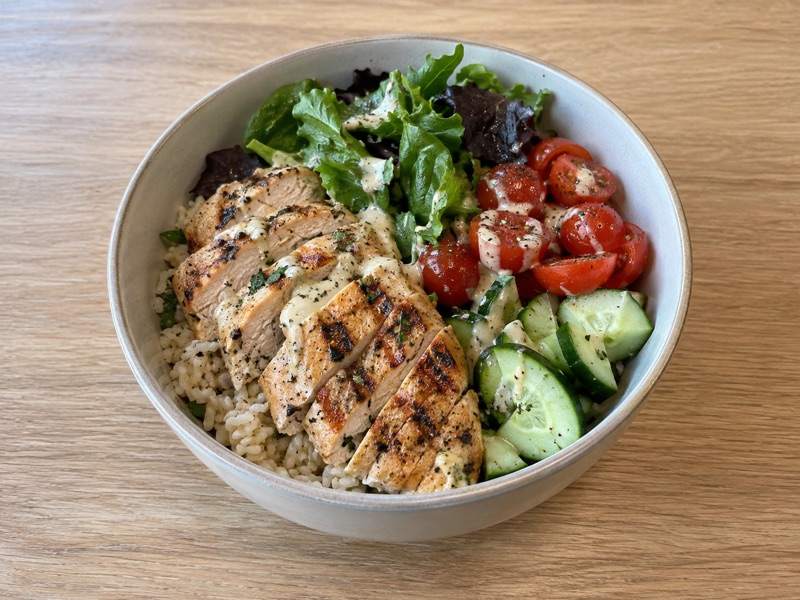
Great protein choice with the grilled chicken! Estimated for this bowl: Protein: 40–50 g Carbs: 55–70 g Calories: 550–700 kcal Varies with portions & sauce.
Illustrative conversation nimo iMessageRemember I’m allergic to shellfish.
Got it — I’ll keep that in mind whenever food comes up.
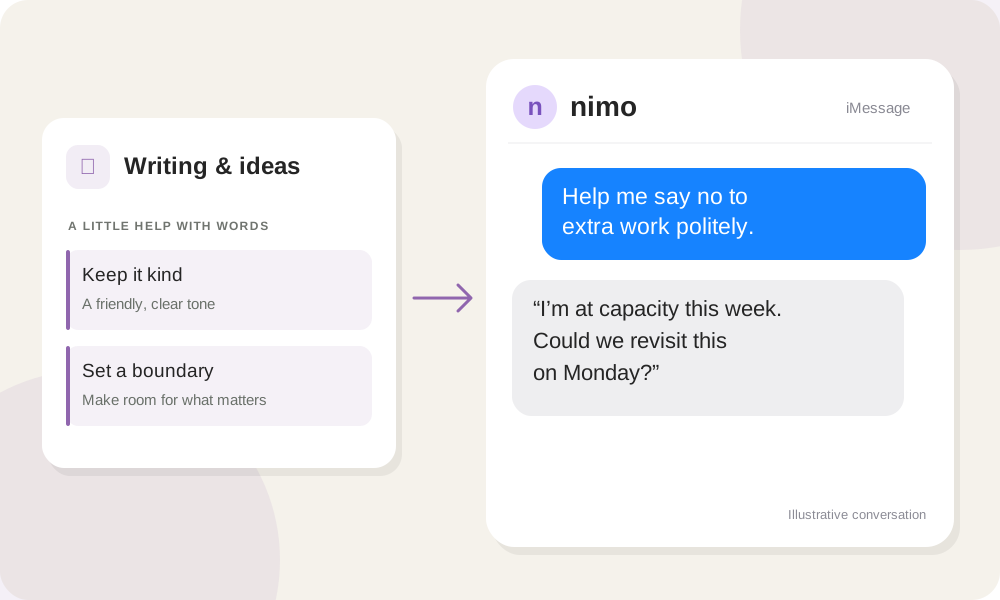
Illustrative conversation nimo iMessageHelp me say no to extra work politely.
“I’m at capacity this week. Could we revisit this on Monday?”
Illustrative conversation nimo iMessageHow did I sleep this week?
You averaged 6 hr 40 min a night—25 minutes more than last week.
Illustrative conversationAsk for a one-off reminder or a daily routine. Nimo brings the nudge back to the same conversation.
“Remind me to call the dentist Monday morning.”
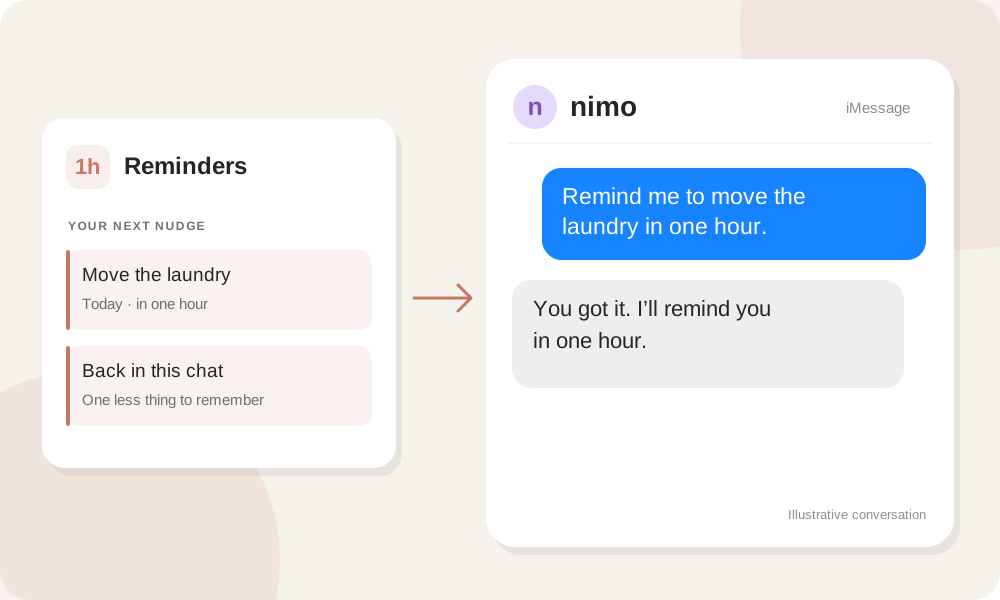
Save useful preferences across conversations. View, correct, or delete them in your memory page.
“Remember that I’m vegetarian and love quiet cafés.”
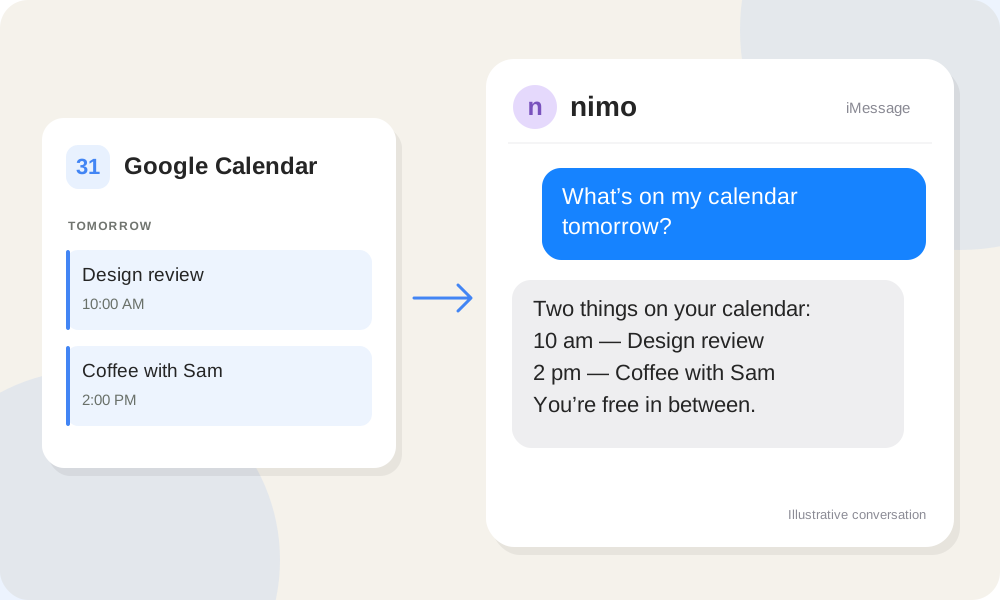
Read your schedule and add events after you confirm. Existing events are never edited or deleted.
“What’s on my calendar tomorrow?”
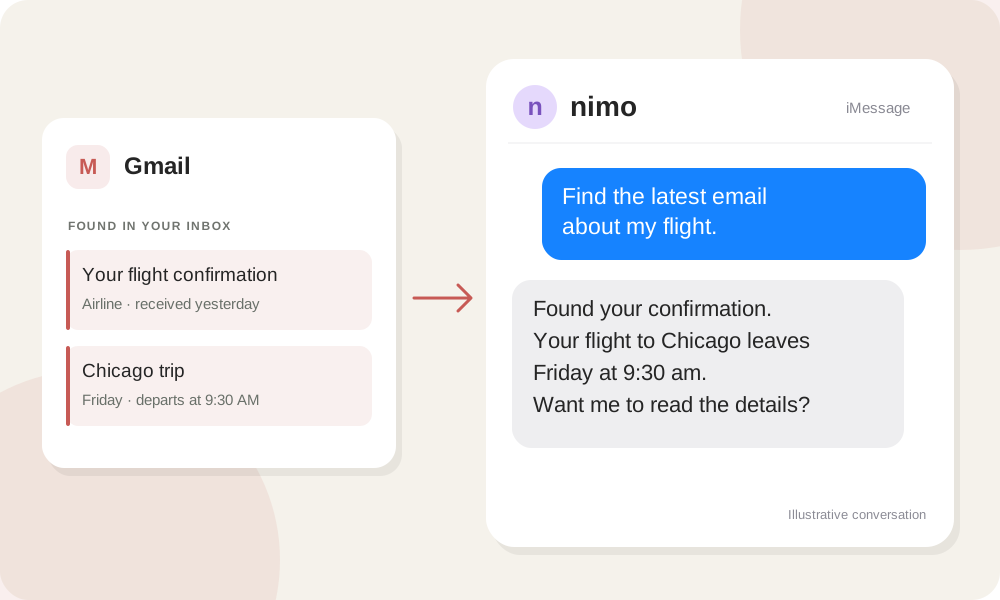
Find messages, read the full email, and send an email after you confirm the recipient and message.
“Find the latest email about my flight.”
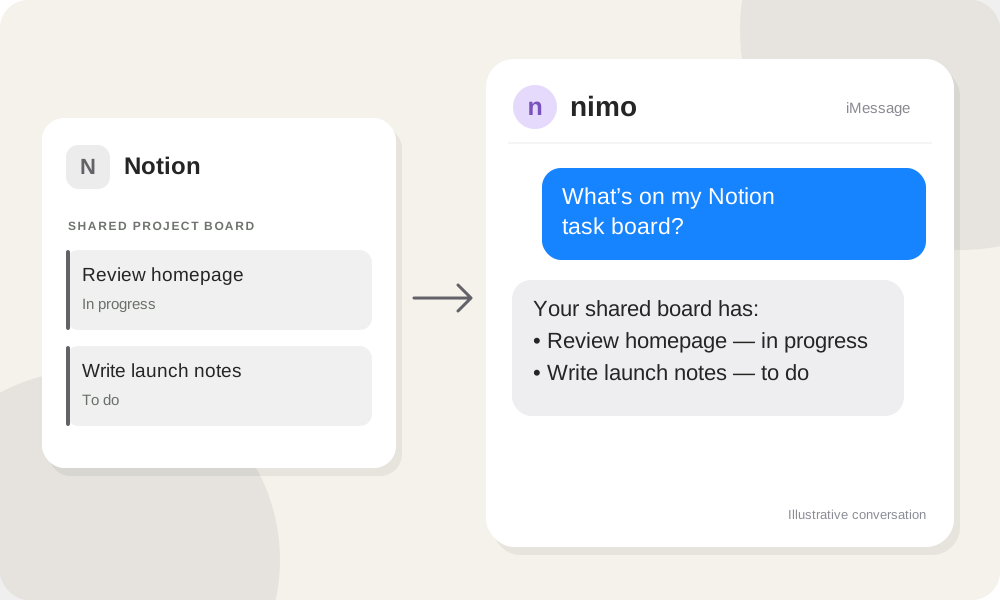
Search and read the pages you share, check task boards, and append notes after your approval.
“What’s on my Notion task board?”
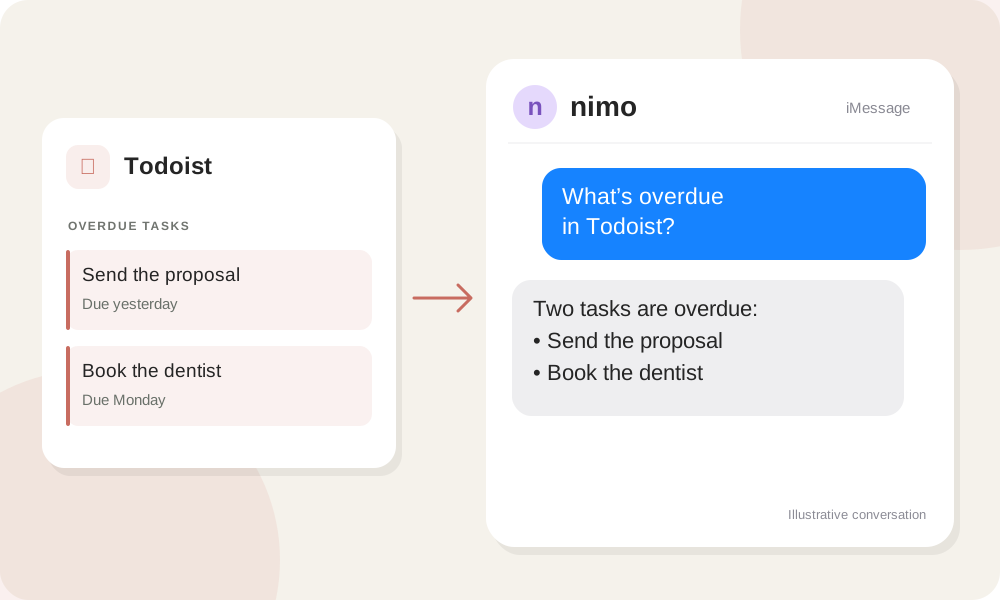
See open, due, and overdue tasks. Review and confirm new tasks before they are added.
“What’s overdue in Todoist?”
Text a photo and ask a question. Get help with a sign, a product, or something you want to understand.
“Can you help me understand this parking sign?”
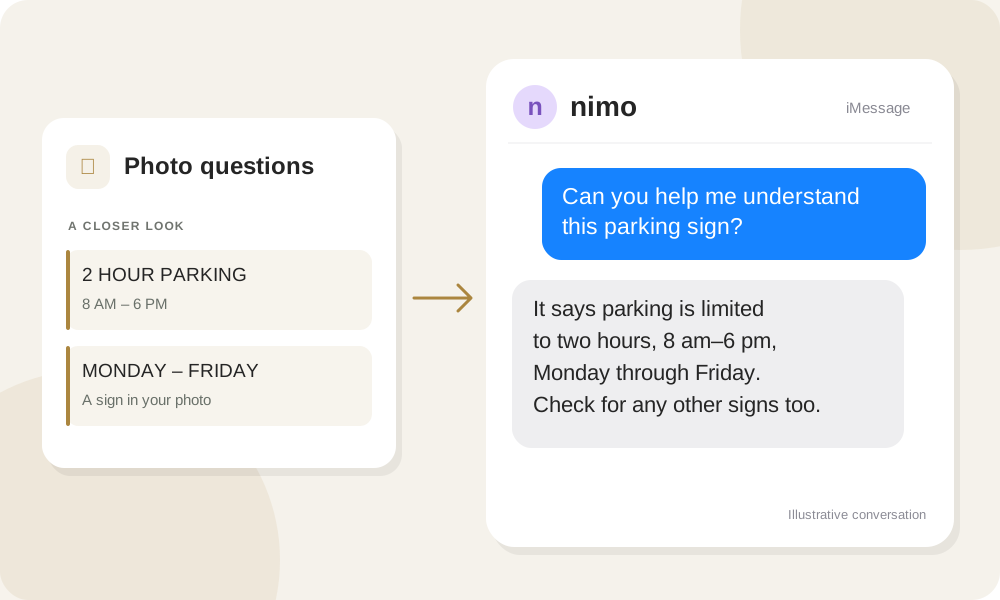
Work through a plan, write a first draft, or get unstuck. Start with whatever is on your mind.
“Help me draft a toast for my friend’s wedding.”
 A small nudge
For the little things your busy brain would rather not hold onto.
Try this text ↗An open tabA second brain for the thought you haven’t quite figured out yet.
Try this text ↗A lighter dayConnect your calendar, then bring the day into focus with one question.
Try this text ↗Tap “Text Nimo” to open your messaging app, or create an account in the web app. Say hello and send your first request.
Yes. Ask Nimo to connect a service and follow its authorization link. Available connections include Spotify, Google, Apple, Notion, Todoist, and GitHub.
You can talk to Nimo in Messages or use the web app. A connected service may ask you to sign in before Nimo can access it.
Useful preferences and details from your conversations can become memories. You can see, edit, and delete them in the app.
Yes. Ask to go off the record. New memories and persistent actions are blocked, and temporary chat history is erased when you return on the record. Copies on your phone remain.